LED Indication
SmartBroom 4 has four LEDs beneath its translucent housing. Read both the colour and the pattern to understand its state.
Where to look
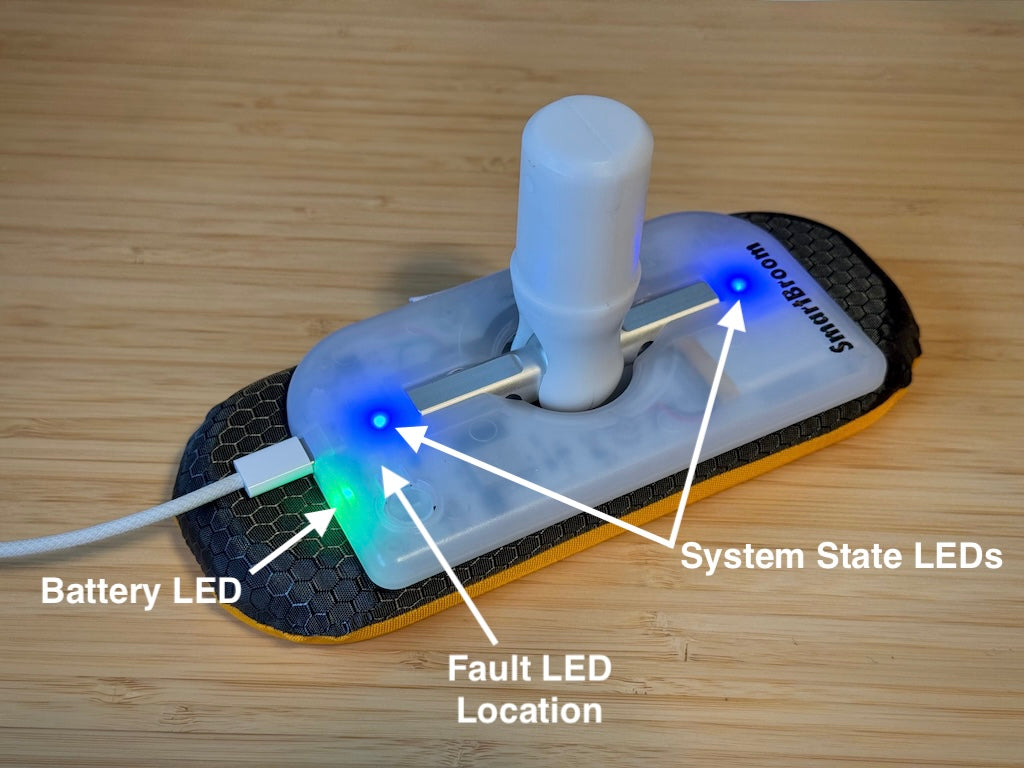
- System state: two LEDs, one on each side of the main load bar.
- Battery and charging: one LED beside the USB port.
- Fault: one LED near the top of the button.
Is it ready to record?
With the broom disconnected, two solid blue system-state LEDs mean it is ready to save background sweeping data locally. Check for this before putting the phone away.
| System-state LED pattern | Meaning and next step |
|---|---|
| Both solid blue while disconnected | Ready for background recording. |
| Alternating dim and bright white while disconnected | Not ready to save locally. Connect and check ownership and device status. |
| Alternating white and purple | A bonded broom needs its clock set or storage freed. Connect to sync the clock and download stored data. |
| Opposing blue/purple blend | Bluetooth connected, without live sweep broadcasting. This indicates the connection; it does not by itself confirm recording readiness. |
| Flashing blue | Live sweep broadcasting to the app. |
| Rapidly alternating blue and purple | Saved data is being transferred. |
| Rapidly flashing blue | Raw live data transfer. |
See Background Recording for preparation and downloads, and Live Sweeping for live sessions.
Battery LED
The battery LED shows charge briefly at startup and charging progress while USB power is connected. See Charging for the colours, thresholds, and low-battery warning.
Fault LED
The fault LED is normally off. If it repeats a white-and-red flash code, contact Curling Tools and report the pattern. The number of flashes helps identify the fault.